Docsway turns pages you already have into a documentation site. Nothing is moved and no page address changes. The setup wizard does the work; this guide walks through it.
Before you start
You need WordPress 6.0 or newer, PHP 7.4 or newer, and some pages (or posts) you want to use as documentation. They can be built with the block editor, Divi or any other builder.
1. Install and activate
- In your dashboard, go to Plugins, Add New, Upload Plugin.
- Choose the Aneris Docsway zip file and press Install Now, then Activate.
The setup wizard opens straight away. You can leave it at any time with Exit setup and come back later from Docsway, Settings, Open setup wizard.
2. Where do your docs live?
Tick the kinds of content that hold your documentation. Most sites use Pages. You can tick more than one, for example Pages and a custom post type.
Then choose how to group them:
- Create Docsway sections (recommended). A separate set of categories just for your docs. Your existing categories are not touched.
- Use a category system I already have. Pick this if your docs are already organised with a custom taxonomy, for example one made with CPT UI.
3. Create your sections
Sections become the headings of your docs menu. Type one per line in the Outline box. Indent a line with two spaces to put it inside the section above:
Getting started
  Installation
  First steps
Configuration
Troubleshooting
FAQ
The preview beside the box shows how the menu will look. Edit the example or replace it with your own.
4. Put pages into sections
Every page is listed with a section menu beside it. Choose a section for each page that belongs in your docs and leave the rest on Not in docs. A page can be added to more sections later.
5. Choose how your docs look
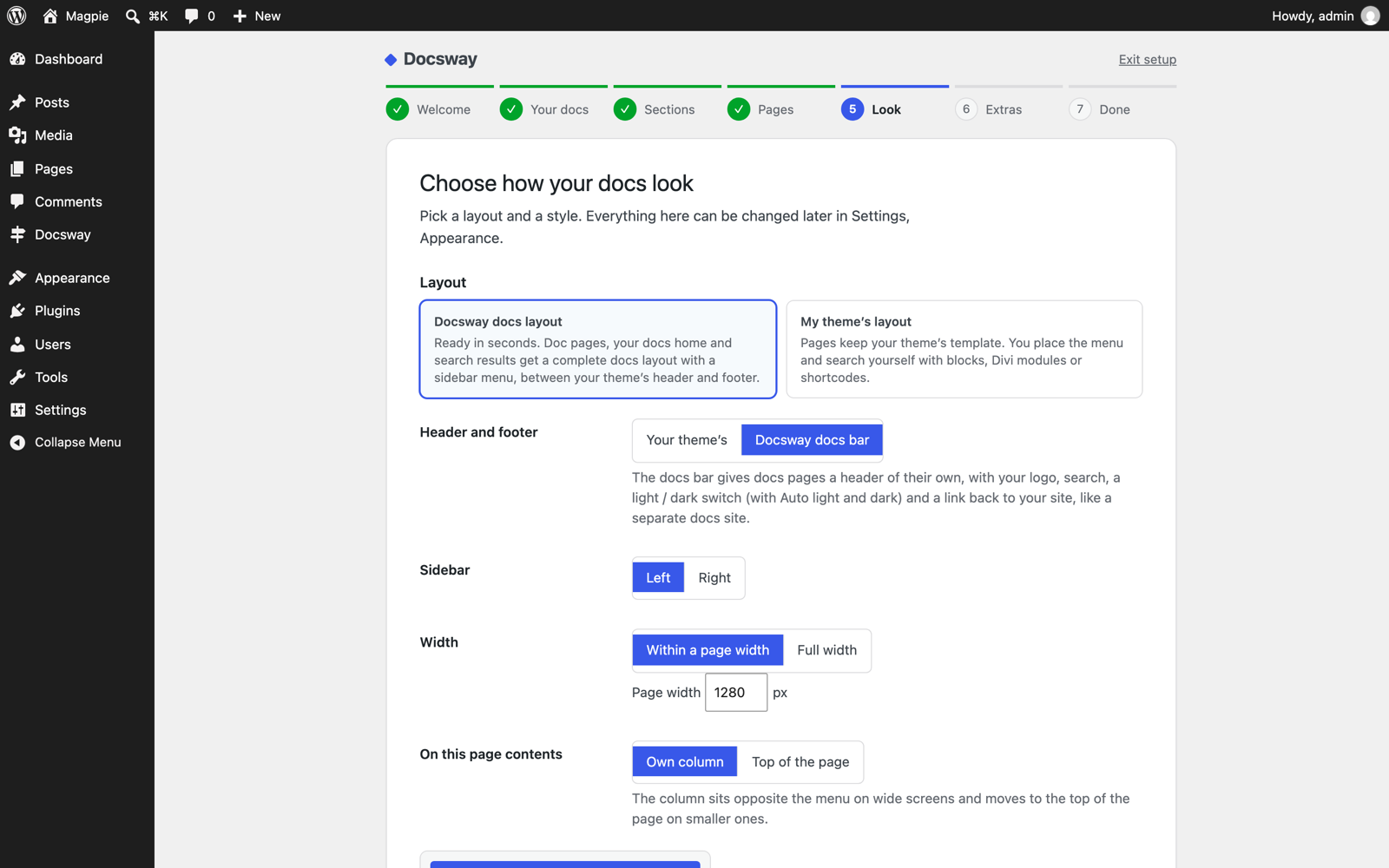
- Layout: pick Docsway docs layout for a complete docs page (sidebar menu, contents column, breadcrumbs and previous and next links) inside your theme's header and footer. Pick My theme's layout if you would rather place everything yourself with blocks, Divi modules or shortcodes.
- Header and footer: keep your theme's, or use the Docsway docs bar, a slim header with your site name, docs search and a link back to your site.
- Sidebar, Width, On this page contents: one click each. The preview updates as you choose.
- Style: pick one of seven ready-made looks and an accent colour. See Layout and styles.
6. Search and page extras
- Docs home page: let Docsway create a "Documentation" page with the search home on it, or choose a page you already have.
- Where full results show: on your docs home page (recommended), on a "Search results" page Docsway creates for you, or nowhere (instant results only).
- Add to every doc page: contents list, previous and next links, breadcrumbs and the other extras you want.
7. Done
The last step lists what to do next. Press View a doc page to see the result, then try the search box or press Ctrl+K (Cmd+K on a Mac).
Next steps
- Add your own quick searches and topic cards: Your docs home page.
- Put the sections in the right order: Order the menu.
- Add words your readers use: Smart search.